


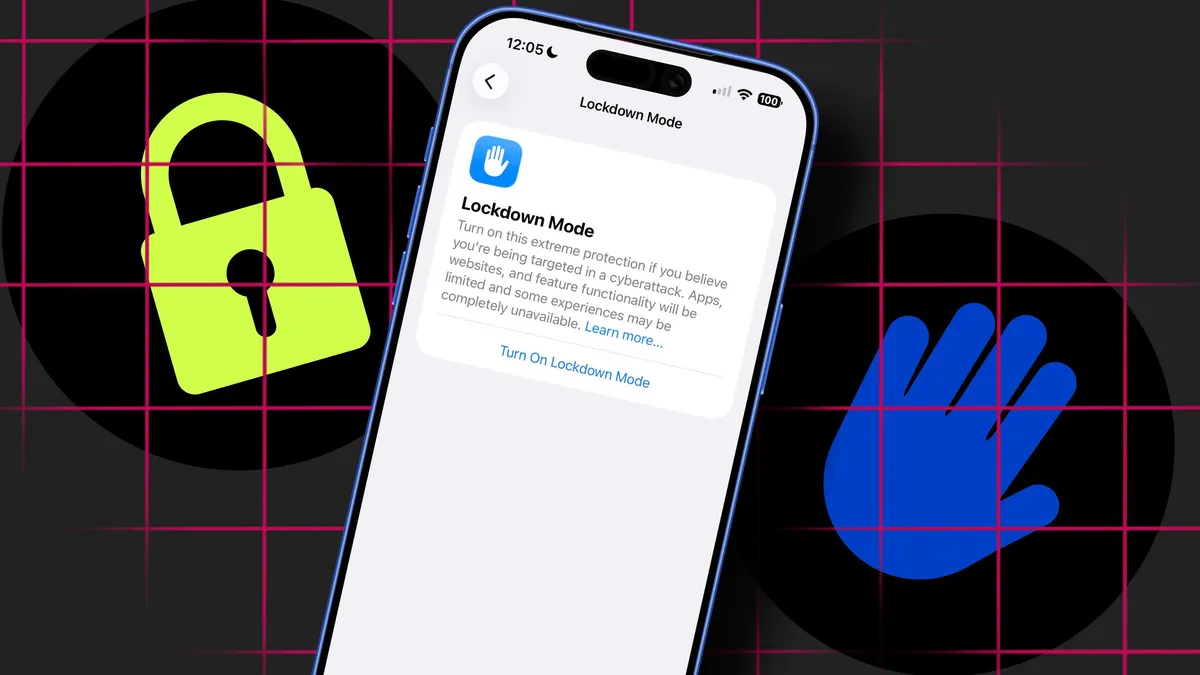
Elyse Betters Picaro / ZDNET
Follow ZDNET: Add us as a preferred source on Google.
ZDNET’s key takeaways
- Lockdown Mode drastically limits iPhone features to stop targeted attacks.
- It is extreme, reversible, and meant for high-risk users, not everyone.
- Enabling it can even block law enforcement’s forensic tools after a seizure.
The iPhone has a little-known but extreme security feature called Lockdown Mode, and most people will never need it. It’s in the news this week after the FBI reportedly seized a journalist’s phone but could not access it because Lockdown Mode was enabled.
Introduced with iOS 16 about four years ago, Lockdown Mode is available to anyone, but it is really meant for people facing serious, targeted threats, such as reporters, politicians, and activists. It does exactly what the name suggests: it locks down your iPhone by aggressively shutting off features and reducing the ways attackers, or even law enforcement, can try to access it.
Also: 14 secret codes that unlock features on your Android and iPhone
When enabled, Lockdown Mode blocks most message attachments and link previews, restricts advanced web technologies, limits incoming FaceTime calls, and disables features like SharePlay, Game Center, and certain Apple service invitations. It also removes shared photo albums, strips location data from shared images, requires devices to be unlocked before connecting to accessories or computers, blocks nonsecure Wi-Fi networks, and prevents device management profiles from being installed.
That is a lot. The tradeoff is a much more limited, less convenient iPhone, but one that is significantly harder to attack. Apart from the FBI situation, I was recently reminded of Lockdown Mode after reading ZDNET’s guide on how to lock down your phone before heading to a protest. It’s not mentioned there, likely because it is so intense, but it is still an option worth knowing about.
Whether you are heading out to exercise your constitutional rights or you are in a high-profile role where security truly matters, Lockdown Mode is worth turning on at least once so you understand how it works and can enable it quickly if needed.
Also: 7 ways to lock down your phone before heading to a protest
How to enable Lockdown Mode on your iPhone
What you’ll need: Before turning on Lockdown Mode, update your device to the latest version of iOS and back it up. If something goes wrong and you later need to erase or restore your device, a recent backup helps prevent data loss. Lockdown Mode is reversible, but because it is designed for high-risk situations, a backup is simply a safety net.
Apple buries Lockdown Mode in your iPhone’s Privacy and Security menu.
You can search for it by swiping down from the middle of the Home screen to open Spotlight Search or by tapping the Search button at the bottom of the screen. You can also search for it directly within the Settings app.
Here is the manual path to find it:
- Open the Settings app.
- Tap Privacy and Security.
- Scroll to the bottom and tap Lockdown Mode.
Also: How to clear your iPhone cache (and put an end to slow performance)
On the Lockdown Mode screen, Apple suggests you enable it if you believe you’re being targeted in a cyberattack. It explains that apps, websites, and some feature functionality will be limited, that certain experiences may be completely unavailable, and then directs you to a support page to learn more.
Show more
Elyse Betters Picaro / ZDNET
Ready to try Lockdown Mode? Then tap the “Turn On…” button on the Lockdown Mode screen. Apple will immediately show you a warning list of what will stop working or be restricted once the feature is enabled.
Here is that list, copied and pasted, for you to review:
- Messages: Most message attachments are blocked, and some features are unavailable.
- FaceTime: Incoming FaceTime calls from people you have not previously called are blocked. Features such as SharePlay and Live Photos are unavailable.
- Web browsing: Some web technologies and browsing features are blocked.
- Photos: Location will be excluded by default when sharing photos, and Shared Albums will be removed from Photos.
- Device connections: Wired connections with another device or accessory while your iPhone is locked are blocked.
- Wireless connectivity: Automatically joining nonsecure Wi-Fi networks and 2G and 3G cellular connectivity are blocked.
- Apple services: Incoming invitations for Apple services from people you have not previously invited are blocked.
- Profiles: Configuration profiles, such as profiles for school or work, cannot be installed.
Also: I changed 10+ settings on my iPhone to significantly extend its battery life (iOS 26 and older)
Once you’ve read that and are OK to proceed, scroll to the bottom and tap “Turn on Lockdown Mode.”
Show more
Elyse Betters Picaro / ZDNET
At this point, you will be prompted to restart your iPhone. A dialog box will appear with two options: Turn On and Restart or Cancel. Tap the former. You will then need to authenticate your device.
Also: 8 ways to get more iPhone storage today – and most are free
After your iPhone restarts, Lockdown Mode should be active. Safari will display a banner confirming it, and some apps may notify you that certain features are now limited. Phone calls, including SOS emergency calls, and plain text messages will continue to work, although Apple said incoming calls will not ring on a paired Apple Watch.
In fact, if you own another Apple device, such as a Mac, you will be prompted on that device to enable Lockdown Mode as well for full protection. Just tap the “Turn on” button when the dialog box appears.
Show more
Elyse Betters Picaro / ZDNET
Let’s say there is a trusted website or app you absolutely need to use while Lockdown Mode is enabled, for whatever reason. The feature does allow limited exceptions, mainly for Safari and apps with limited functionality.
To exclude websites, open Safari, load the site, tap the page menu, and turn off Lockdown Mode.
You can manage your excluded sites in Settings:
- Open Settings.
- Go to Privacy and Security > Lockdown Mode.
- Tap Configure Web Browsing.
Also: This hidden iPhone camera trick can help you locate your lost device fast – no Find My required
From that menu, you can also exclude your limited-functionality apps, but only if you’ve opened them since enabling Lockdown Mode. Apple strongly advises against excluding them, since every exception reduces protection.
Show more
Elyse Betters Picaro / ZDNET
Lockdown Mode is reversible. You can disable it at any time.
- Go to Settings.
- Tap Privacy and Security.
- Tap Lockdown Mode.
- Turn it off and restart your device.
Easy peasy.
Also: How to stop iPhone apps from tracking you
If you are wondering whether the FBI or an attacker can simply turn off Lockdown Mode, the answer is no, not easily. Disabling it requires physical access to the iPhone and the device passcode or biometric authentication.
Lockdown Mode is designed to protect against remote, targeted cyberattacks such as spyware, and it also blocks many forensic techniques, including those that rely on wired connections to a locked device. If someone already has full access to your unlocked phone, most security features are at risk anyway. Lockdown Mode’s value is making both remote compromise and locked-device data extraction far more difficult.
That is what appears to have happened in the recent FBI case.
Court records reportedly show that agents were unable to extract data from a Washington Post journalist’s seized iPhone because Lockdown Mode was enabled. Although they had the phone in their possession and it was powered on and charging, with Lockdown Mode enabled, the FBI’s forensic tools could not access its contents.
Show more
Elyse Betters Picaro / ZDNET
How long does it take to enable Lockdown Mode?
It takes a few quick taps to enable Lockdown Mode. The fastest way is to quickly search for “Lockdown Mode” using Spotlight or the Settings search bar. Once it opens, tap Turn On, swipe past the warning, and tap Turn On again. You’ll need to authenticate, and your iPhone will then restart, which can take about a minute. Lockdown Mode is active after that.
Can I use my iPhone normally with Lockdown Mode on?
Not really. Core features like calls and texts still work, but many services and features are limited, from blocked message attachments to restricted FaceTime calls.
Who should actually use Lockdown Mode?
Apple says Lockdown Mode is for people who face a real risk of targeted cyberattacks. Most users do not fall into that category. It can also be useful for anyone concerned about law enforcement seizing their phone, including journalists and protesters.
Also: This hidden iPhone feature keeps your private apps completely out of sight – how I use it
Is Lockdown Mode useful for everyday privacy?
Not really. For most people, the standard security features built into iOS are more than enough to thwart attackers.
Do I need my passcode to use Lockdown Mode?
Yes. Authentication is required to turn on/off Lockdown Mode, and you’ll need to enter your passcode again after the iPhone restarts.
Show more
